

 Français
 Italiano
 中文




 FreshTomato
If you have a router using FreshTomato firmware, you can use the Custom URL
option to keep your domain mapped to your dynamic IP.
The good thing about entering a custom URL is you can update a domain, a subdomain a group of domains as well as all the domains in the account.
Another good thing about FreshTomato firmware is that it allows you to configure multiple providers or multiple
domains of the same provider.
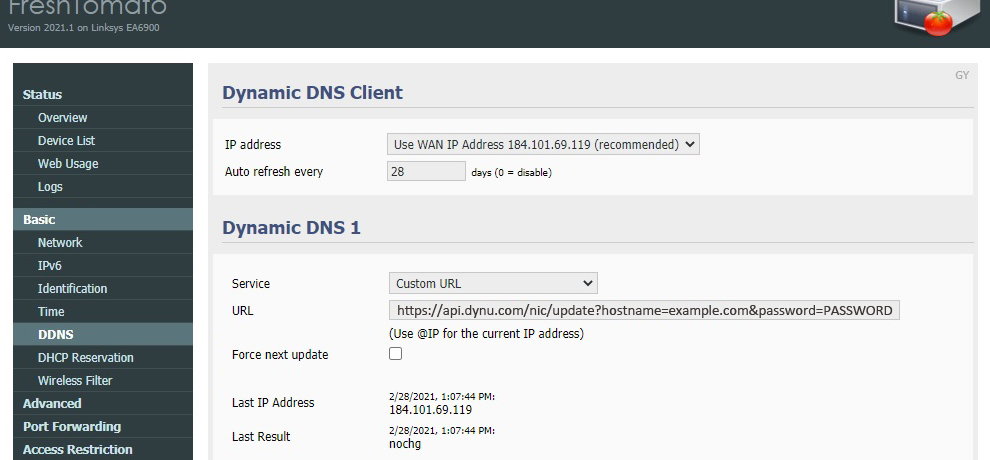
From the main menu, select Basic then DDNS. Use the following settings:
Service: Custom URL
URL: You can use any of the below custom URL. Fore example, https://api.dynu.com/nic/update?hostname=example.com&password=PASSWORD
 Dynu Custom IP Update URL
From the main menu, select Basic then DDNS. Use the following settings:
Dynu Custom IP Update URL
Update one domain name
Non SSL:
http://api.dynu.com/nic/update?hostname=example.dynu.com&password=PASSWORD
SSL Format:
https://api.dynu.com/nic/update?hostname=example.dynu.com&password=PASSWORD
Update all domains in your account that do not belong to a group
Non SSL:
http://api.dynu.com/nic/update?username=USERNAME&password=PASSWORD
SSL Format:
https://api.dynu.com/nic/update?username=USERNAME&password=PASSWORD
Update one group of domains and aliases
Non SSL:
http://api.dynu.com/nic/update?username=USERNAME&password=PASSWORD&group=GROUP
SSL Format:
http://api.dynu.com/nic/update?username=USERNAME&password=PASSWORD&group=GROUP
Update an alias
Non SSL:
http://api.dynu.com/nic/update?hostname=example.dynu.com&alias=Alias&password=PASSWORD
SSL Format:
https://api.dynu.com/nic/update?hostname=example.dynu.com&alias=Alias&password=PASSWORD
If you still have questions on the configuration, you may refer to the
API
page
or
contact
support.
Update all domains in your account that do not belong to a group
Update one group of domains and aliases
Update an alias
Custom
A1 Hybrid Box
Apple Airport
Arris
Bintec
BT Smart Hub
Cisco Router
Cudy AC1200
DD-WRT
D-Link DSR-250N
Dovado
DrayTek
E-Lins
Express VPN
HUAWEI HG 533/520v
HG8245/8045/8346M
FreeNAS
Fritzbox
IC Realtime
Maxis AC1200
Mikrotik
MultiTech
MOFI4500
Ooredoo
Open Wrt
OPNsense
pfSense
pfSense (IPv6)
QNAP
Raspberry Pi
Sagemcom
Synology NAS
Technicolor TG582n
Technicolor TG588
Technicolor TG789
TELTONIKA
Thomson TG585v7
Tomato USB
Tilgin
TP-Link ER605
TrueNAS
Ubiquiti EdgeRouter
WatchGuard Firebox
Windtre
ZTE
ZyWALL-USG50
Zyxel 5501
Zyxel-C1100Z
Zyxel VMG3925
Zyxel VMG3927-T50K