




 Android App
The Dynu Android App allows Android users to manage their Dynu account with an easy-to-use mobile application.
The IP Update Client utility in the app detects any changes to your system's IP Address and reports it to Dynu DNS
servers so that your domain name keeps mapped to the dynamic IP address detected by the App.
This application supports IPv4 and IPv6 updates as well as location and is an essential part of the dynamic DNS service.
 Install
You can browse to the Dynu Android App link in the browser and open it in the Google Play store to have it installed on your mobile device. You may also directly search for 'Dynu' in the Google Play store and install it.
Setup
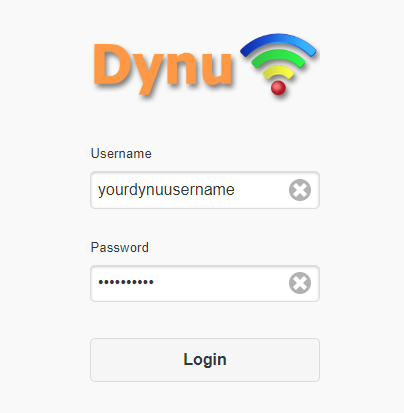
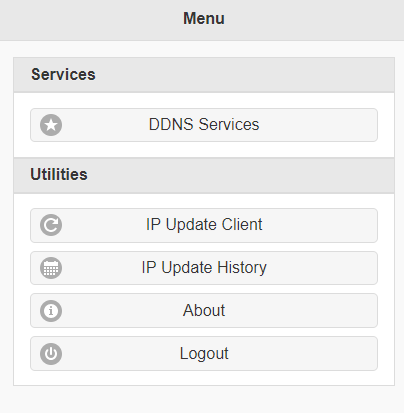
Once installed, you will see a login page where you can enter your Dynu account username and password to log in. Once logged in, you will be presented with a menu with options such as Dynamic DNS Service, IP Update Client etc. You can go into the IP Update Client section to configure the IP updates.
App Battery Usage
Android limits what an application is allowed to do once it is no longer on the screen. Every application is installed with its battery usage set to 'Optimized', which allows the operating system to delay or skip scheduled work in order to save power. For most applications this is harmless, but for the IP Update Client it means that scheduled IP updates can be deferred for long periods or stopped altogether while the app is closed, leaving your hostname pointing at an IP address which is no longer current.
To make sure that IP updates keep running while the app is closed, set the battery usage for the Dynu app to 'Unrestricted'. Only you can change this setting as an application is not permitted to change it on its own.
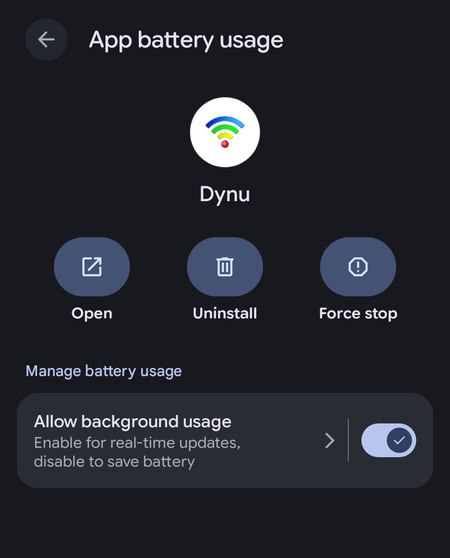
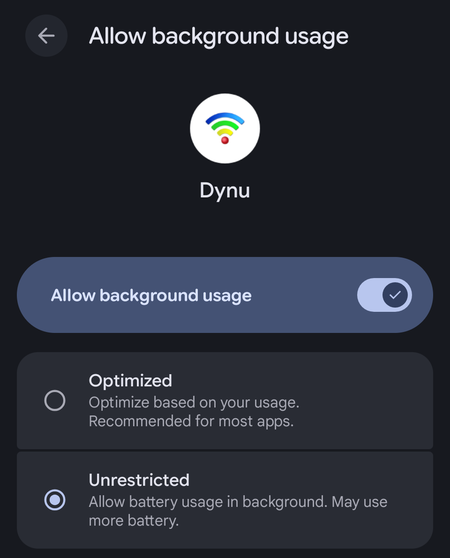
Allow background usage This has to be turned on. If it is turned off, the app is not allowed to run in the background at all and IP updates stop completely while the app is closed.
Unrestricted Tap on 'Allow background usage' to open the list of options and choose 'Unrestricted' so that Android does not defer or drop the scheduled IP updates.
You may reach this setting on your device as shown:
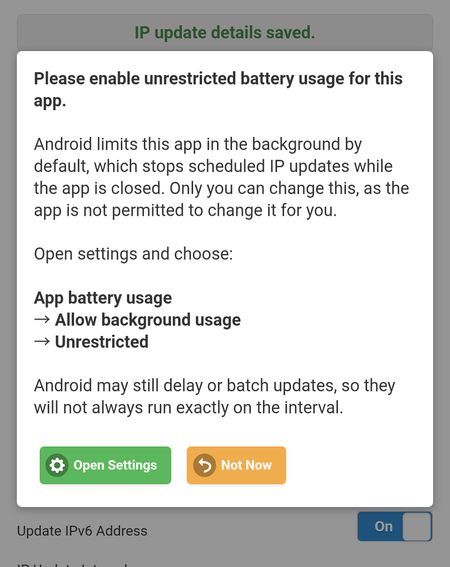
The app checks this setting for you. When you activate IP updates, if the app is being limited in the background, the app asks you to change the setting and offers an Open Settings button which takes you directly to the 'App battery usage' page for the Dynu app. A message is also displayed on the IP Update screen, as shown in the screenshot above, along with an 'open settings' link. The message stays on the screen for as long as the app is being limited, so the setting remains reachable at any time.
 Even when the app is set to 'Unrestricted', Android decides when an application is woken up. An update may therefore run later
than the interval you have chosen. The IP update interval is a minimum and not an exact schedule.
Even when the app is set to 'Unrestricted', Android decides when an application is woken up. An update may therefore run later
than the interval you have chosen. The IP update interval is a minimum and not an exact schedule.
The name and the location of this setting varies between manufacturers and Android versions. On some devices it is found under
Settings → Apps → Dynu → Battery, and the option
may be named 'Unrestricted', 'No restrictions' or 'Allow background activity'.
Battery saver and similar power saving modes override this setting while they are switched on and will pause IP updates until
they are switched off.
Install
You can browse to the Dynu Android App link in the browser and open it in the Google Play store to have it installed on your mobile device. You may also directly search for 'Dynu' in the Google Play store and install it.
Setup
Once installed, you will see a login page where you can enter your Dynu account username and password to log in. Once logged in, you will be presented with a menu with options such as Dynamic DNS Service, IP Update Client etc. You can go into the IP Update Client section to configure the IP updates.
The IP update function is disabled by default because this application does not only allow you to perform IP updates, but also gives you
the option to manage your free dynamic DNS hostnames on your mobile device. If you want to use this application for IP updates,
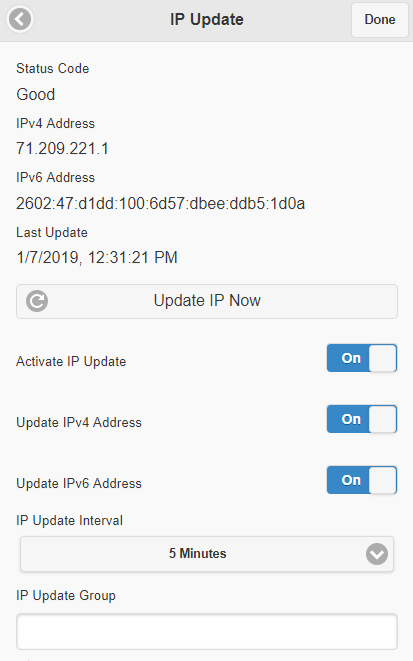
You need to configure the utility as shown:
Activate IP update This field has to be enabled for the IP update function to run.
Update IPv4 Address Enable this option if you want your IPv4 address to be updated.
Update IPv6 Address Enable this option if you want your IPv6 address to be updated.
IP Update Interval Choose how often you want the IP updates to be performed. Android does not schedule background work more often than every 15 minutes, so 15 minutes is the shortest interval which can be selected.
IP Update Group Use 'IP Update Group' parameter if you want to update IP address for one or a collection of hostnames including those created using aliases in different locations. You may set up group names for your hostnames in the control panel. Make sure that you leave the 'IP Update Group' field empty if you did not assign your hostnames to a location/group in the control panel.
Once you fill out all the fields, clicking the Save button will save your settings. The app then checks your IP address at the interval you have chosen and updates your hostnames whenever the IP address changes, including while the app is closed. You may also update the IP address straight away at any time by clicking on the Update IP Now button.
Activate IP update This field has to be enabled for the IP update function to run.
Update IPv4 Address Enable this option if you want your IPv4 address to be updated.
Update IPv6 Address Enable this option if you want your IPv6 address to be updated.
IP Update Interval Choose how often you want the IP updates to be performed. Android does not schedule background work more often than every 15 minutes, so 15 minutes is the shortest interval which can be selected.
IP Update Group Use 'IP Update Group' parameter if you want to update IP address for one or a collection of hostnames including those created using aliases in different locations. You may set up group names for your hostnames in the control panel. Make sure that you leave the 'IP Update Group' field empty if you did not assign your hostnames to a location/group in the control panel.
Once you fill out all the fields, clicking the Save button will save your settings. The app then checks your IP address at the interval you have chosen and updates your hostnames whenever the IP address changes, including while the app is closed. You may also update the IP address straight away at any time by clicking on the Update IP Now button.
App Battery Usage
Android limits what an application is allowed to do once it is no longer on the screen. Every application is installed with its battery usage set to 'Optimized', which allows the operating system to delay or skip scheduled work in order to save power. For most applications this is harmless, but for the IP Update Client it means that scheduled IP updates can be deferred for long periods or stopped altogether while the app is closed, leaving your hostname pointing at an IP address which is no longer current.
To make sure that IP updates keep running while the app is closed, set the battery usage for the Dynu app to 'Unrestricted'. Only you can change this setting as an application is not permitted to change it on its own.
Allow background usage This has to be turned on. If it is turned off, the app is not allowed to run in the background at all and IP updates stop completely while the app is closed.
Unrestricted Tap on 'Allow background usage' to open the list of options and choose 'Unrestricted' so that Android does not defer or drop the scheduled IP updates.
You may reach this setting on your device as shown:
- Open the Android Settings app.
- Go to Apps and select Dynu.
- Tap on App battery usage.
- Turn on Allow background usage and choose Unrestricted.
The app checks this setting for you. When you activate IP updates, if the app is being limited in the background, the app asks you to change the setting and offers an Open Settings button which takes you directly to the 'App battery usage' page for the Dynu app. A message is also displayed on the IP Update screen, as shown in the screenshot above, along with an 'open settings' link. The message stays on the screen for as long as the app is being limited, so the setting remains reachable at any time.
Even when the app is set to 'Unrestricted', Android decides when an application is woken up. An update may therefore run later
than the interval you have chosen. The IP update interval is a minimum and not an exact schedule.
The name and the location of this setting varies between manufacturers and Android versions. On some devices it is found under
Settings → Apps → Dynu → Battery, and the option
may be named 'Unrestricted', 'No restrictions' or 'Allow background activity'.
Battery saver and similar power saving modes override this setting while they are switched on and will pause IP updates until
they are switched off.
Custom
A1 Hybrid Box
Apple Airport
Arris
Bintec
BT Smart Hub
Cisco Router
Cudy AC1200
DD-WRT
D-Link DSR-250N
Dovado
DrayTek
E-Lins
Express VPN
HUAWEI HG 533/520v
HG8245/8045/8346M
FreeNAS
Fritzbox
IC Realtime
Maxis AC1200
Mikrotik
MultiTech
MOFI4500
Ooredoo
Open Wrt
OPNsense
pfSense
pfSense (IPv6)
QNAP
Raspberry Pi
Sagemcom
Synology NAS
Technicolor TG582n
Technicolor TG588
Technicolor TG789
TELTONIKA
Thomson TG585v7
Tomato USB
Tilgin
TP-Link ER605
TrueNAS
Ubiquiti EdgeRouter
WatchGuard Firebox
Windtre
ZTE
ZyWALL-USG50
Zyxel 5501
Zyxel-C1100Z
Zyxel VMG3925
Zyxel VMG3927-T50K