




 How to add a port monitor...
Dynu's System Monitoring & DNS Failover service helps you monitor critical services
from multiple geographic locations and automatically respond when downtime is detected.
You can log into the control panel to add and manage your monitors.
A Port monitor checks whether a specific TCP port on a host is open and accepting connections. It is useful for verifying that a particular network service — such as SMTP, IMAP, SSH, FTP, RDP, or a custom application — is up and reachable, even when the service does not respond to a standard HTTP request or ICMP ping. If the port connection fails from two or more geographic monitoring locations, you will be notified and any configured failover actions will be triggered.
To add a Port monitor in the control panel, you may follow these 3 steps.
 Step 2
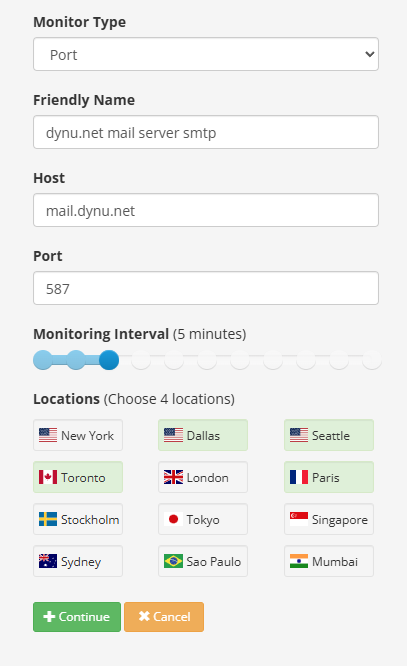
Configure your Port monitor using the following fields.
Monitor Type Choose "Port".
Friendly Name A descriptive label for the host and service being monitored. This name will appear in any notification emails sent to you. For example, dynu.net mail server smtp .
Host The hostname or IP address of the device whose port will be checked. Do not include a protocol (such as http://) or a path. For example, mail.dynu.net .
Port The TCP port number to be checked on the host. Enter the port used by the service you want to monitor (e.g., 25 or 587 for SMTP, 143 for IMAP, 443 for HTTPS, 22 for SSH). For example, 587 .
Monitoring Interval How often the port check is performed. You may choose any value between 1 minute and 1 day using the slider. For example, 5 minutes .
Locations Choose 4 geographic monitoring locations from the available list (e.g., New York, Dallas, Seattle, Toronto, London, Paris, Stockholm, Tokyo, Singapore, Sydney, Sao Paulo, Mumbai). Your host and port are checked simultaneously from all selected locations, and downtime must be confirmed from two or more locations before an alert is triggered — eliminating false alarms from single-point network issues.
Step 3
Click Continue to save the monitor. You can then proceed to set up notification contacts and failover actions for this monitor.
What is a Port monitor?
A Port monitor checks whether a specific TCP port on a host is open and accepting connections. It is useful for verifying that a particular network service — such as SMTP, IMAP, SSH, FTP, RDP, or a custom application — is up and reachable, even when the service does not respond to a standard HTTP request or ICMP ping. If the port connection fails from two or more geographic monitoring locations, you will be notified and any configured failover actions will be triggered.
How to add a Port monitor?
To add a Port monitor in the control panel, you may follow these 3 steps.
 Step 2
Configure your Port monitor using the following fields.
Monitor Type Choose "Port".
Friendly Name A descriptive label for the host and service being monitored. This name will appear in any notification emails sent to you. For example, dynu.net mail server smtp .
Host The hostname or IP address of the device whose port will be checked. Do not include a protocol (such as http://) or a path. For example, mail.dynu.net .
Port The TCP port number to be checked on the host. Enter the port used by the service you want to monitor (e.g., 25 or 587 for SMTP, 143 for IMAP, 443 for HTTPS, 22 for SSH). For example, 587 .
Monitoring Interval How often the port check is performed. You may choose any value between 1 minute and 1 day using the slider. For example, 5 minutes .
Locations Choose 4 geographic monitoring locations from the available list (e.g., New York, Dallas, Seattle, Toronto, London, Paris, Stockholm, Tokyo, Singapore, Sydney, Sao Paulo, Mumbai). Your host and port are checked simultaneously from all selected locations, and downtime must be confirmed from two or more locations before an alert is triggered — eliminating false alarms from single-point network issues.
Step 3
Click Continue to save the monitor. You can then proceed to set up notification contacts and failover actions for this monitor.